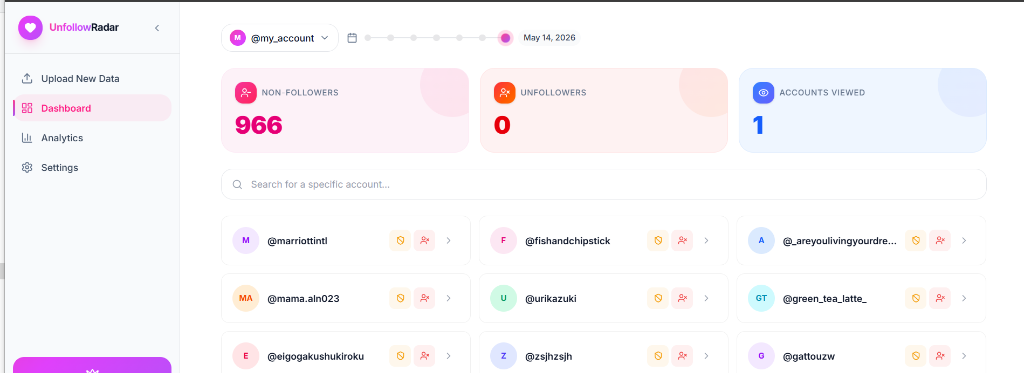
Finding unfollowers on Instagram safely was always difficult until now with UnfollowRadar. It is by far the safest tool on the market that allows you to find people who don’t follow you back and who unfollowed you on Instagram without getting banned or restricted. This tutorial will give you a step by step guide to finding those snakes so you can deal with them however you want!
Summary of Instructions to Find Unfollowers on UnfollowRadar
How to Find Unfollowers on UnfollowRadar — UnfollowRadar works by analyzing your Instagram data to show who unfollowed you and who never followed you back.
The process is slightly different depending on whether you’re using the Instagram Website (desktop) or the Instagram App (mobile).
Step 1 — Choose Your Platform
If you’re on the Instagram Website (desktop)
- Open Instagram in your web browser.
- Click this link while logged into the account you want to check.
- If the link doesn’t work: Go to More → Settings → See more in Accounts Center.
- Click Your information and permissions.
- Continue to Step 2 — What text do you see right now?
If you’re on the Instagram App (mobile)
- Open Instagram → go to your Profile.
- Tap the menu icon (☰) (top right).
- Tap Accounts Center.
- Tap Your information and permissions.
- Continue to Step 2 — What text do you see right now?
Step 2 — What text do you see right now?
Look closely at your screen and match the wording you see under Accounts Center:
If you see “Export your information”
Follow Path A below to customize and export your follower data.
Go to Path AIf you see “Download your information”
Follow Path B below to request a transfer or download of your details.
Go to Path BCan't find either? You might not be in Accounts Center → Your information and permissions. Go back to Step 1. Picked the wrong one? Just go back and choose the other path — nothing will break.
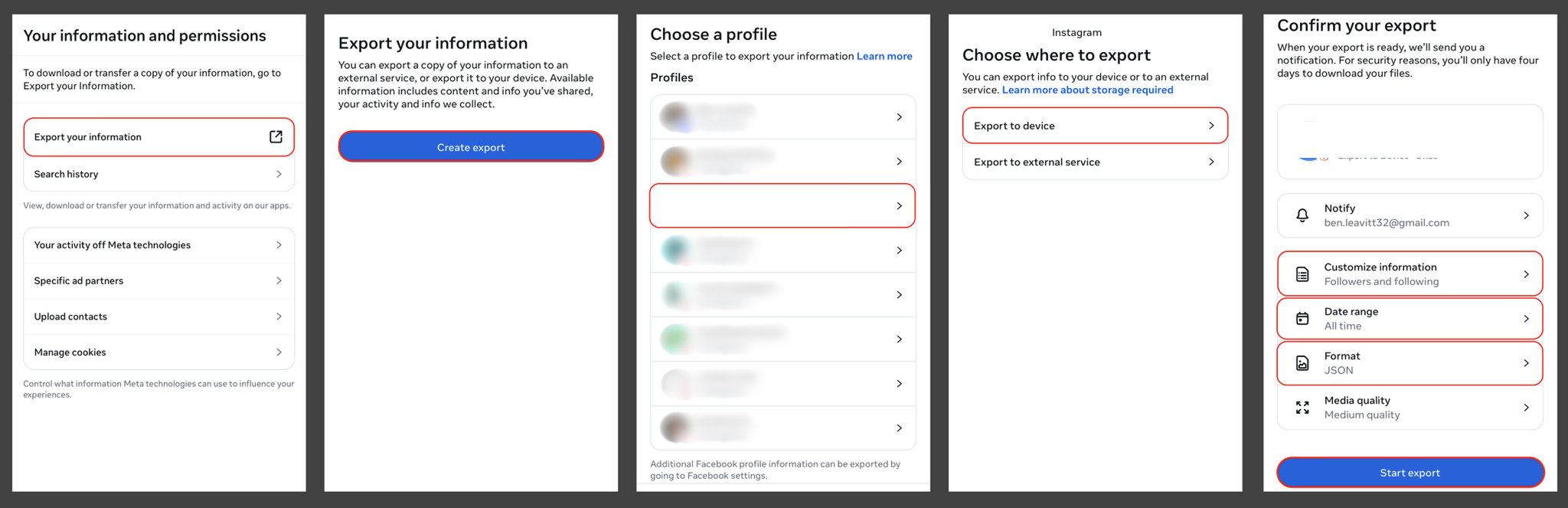
Path A — Export your information
- Click/Tap Export your information.
- Click/Tap Create export.
- If prompted, select the correct account.
- Click/Tap Export to device.
- On the Confirm your export screen:
- Click Customize information → Unselect all the options on the page, and select only the Followers and Followingoption in the “Connections” section, then hit Save.
- Click Date range → All time→ Save.
- Click Format → JSON→ Save.
- Click/Tap Start export.
- Instagram will email you when your file is ready.
- Open the email → click Download your file.
⚠️ Note:Make sure every other option is unchecked in the “Customize information” step. Only Followers and following should remain selected.
In UnfollowRadar:
- Open UnfollowRadar.
- Upload the downloaded file directly (keep it as a ZIP).
- Click/Tap Results to view non-followers instantly.
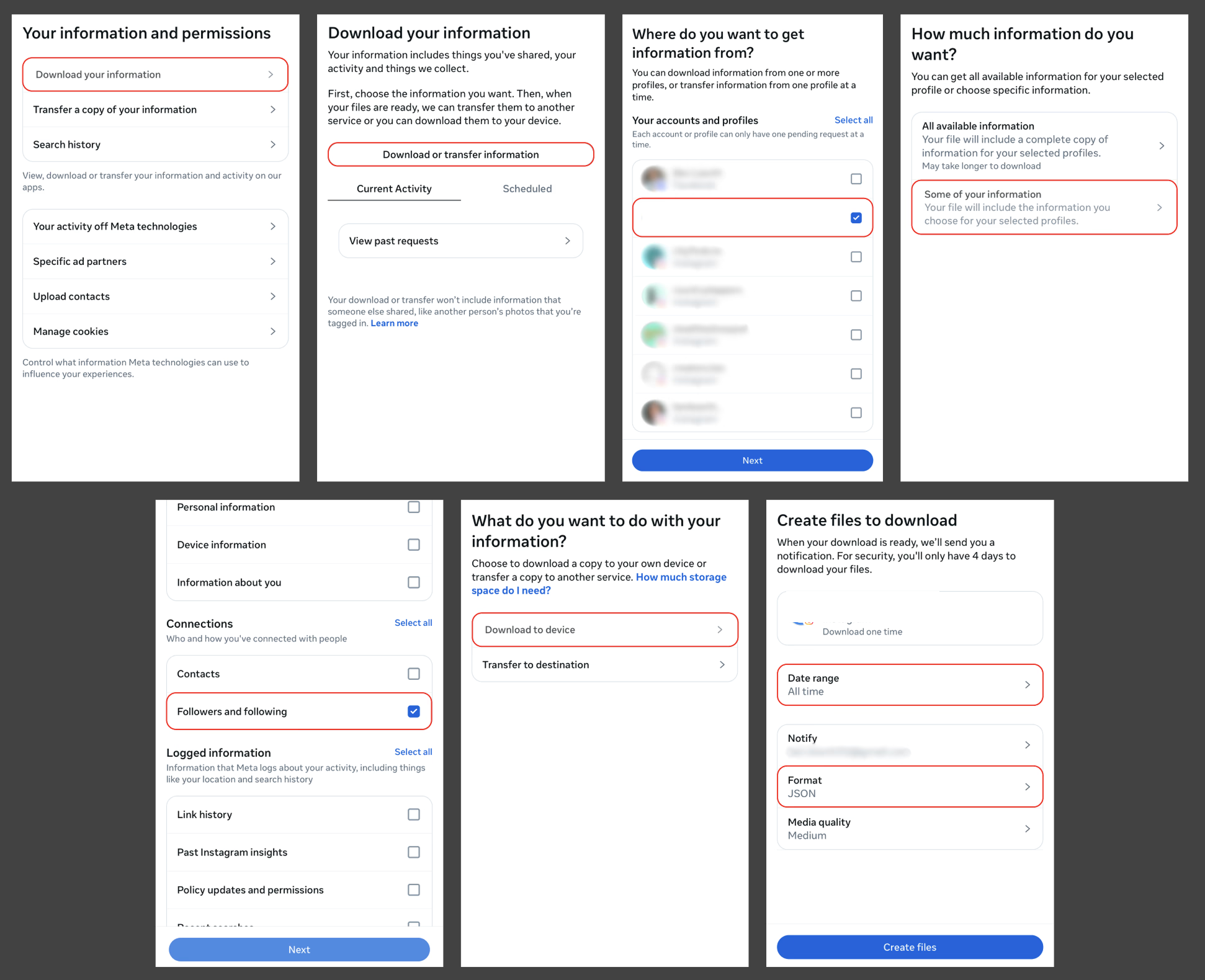
Path B — Download your information
- Click/Tap Download your information.
- Click/Tap Download or transfer information.
- If prompted, select the correct account.
- Choose Some of your information.
- Select Followers and following→ Next.
- Choose Download to device.
- Configure the request:
- Set Date range → All time→ Save.
- Set Format → JSON→ Save.
- Click/Tap Create files.
- Instagram will email you when your file is ready.
- Open the email → click Download your file.
In UnfollowRadar:
- Open UnfollowRadar.
- Upload the downloaded ZIP file.
- Click/Tap Results to view your lists.
Important Notes
- 📌Always choose “All time” and “JSON”— otherwise, the results will be incomplete and UnfollowRadar won't be able to parse them.
- 📌If you manage multiple accounts, make sure you select the correct account before starting the download.
- 📌If you don't receive the email from Instagram, check your Spam/Promotions folder or request the export again.
- 📌Receiving the email from Instagram may take anywhere from a few minutes up to an hour, depending on the size of your account (followers/following count).
- 📌Do NOT unzip the file: Upload the ZIP file directly. Unzipping it will prevent UnfollowRadar from reading your file structure properly.
- 📌Unfollowing people who don't follow you back: To track unfollowers over time, we compare historical snapshots. Make sure to upload regularly to see changes!
Why Do My Results Look Incorrect?
If your results don’t look right or the page is showing errors, it is usually caused by one of these common mistakes:
You unzipped the ZIP folder Instagram gave you. UnfollowRadar expects the raw, original ZIP file.
You selected the wrong account during the Instagram download process.
You forgot to change the format from HTML to JSON. We cannot read HTML files.
You did not set the date range to “All time”, resulting in missing followers.
💡 How Do I Fix It?
- •Delete the incorrect audit on your side bar history.
- •Repeat the Instagram download steps, ensuring you choose JSON and All Time.
- •Upload the ZIP file straight to the correct UnfollowRadar dashboard account.
Why UnfollowRadar is 100% Safe
Unlike other unfollower tracking tools, UnfollowRadar uses Instagram’s official data export feature — the same download that Instagram lets you request from your Settings. Here’s why this makes UnfollowRadar completely safe:
- ✅No password required — We never ask for your Instagram login. Zero access to your account.
- ✅No Instagram API — We don’t connect to Instagram’s API, so there’s zero risk of account flagging or bans.
- ✅100% client-side — Your data is parsed entirely in your browser. Nothing is uploaded to any server.
- ✅No data storage — We don’t store any of your Instagram data. It’s physically impossible for us to see your information.
- ✅Uses official Instagram feature — The data export is a feature Instagram provides for all users. Using it is completely within Instagram’s Terms of Service.